Detailed Steps
Step 1: Get your setup ready
Before you start, make sure you have all of the following:
- A Windows PC.
- v2rayN installed and working.
- OBS Studio installed.
- GoLive Bridge (the TikTok stream key tool) downloaded, installed, and activated.
- A phone you'll use for the TikTok live stream.
- A second device that can control the network or a hotspot — another phone, or anything that can log into a router/hotspot admin panel — you'll use it later to disconnect the live phone.
Step 2: Configure v2rayN
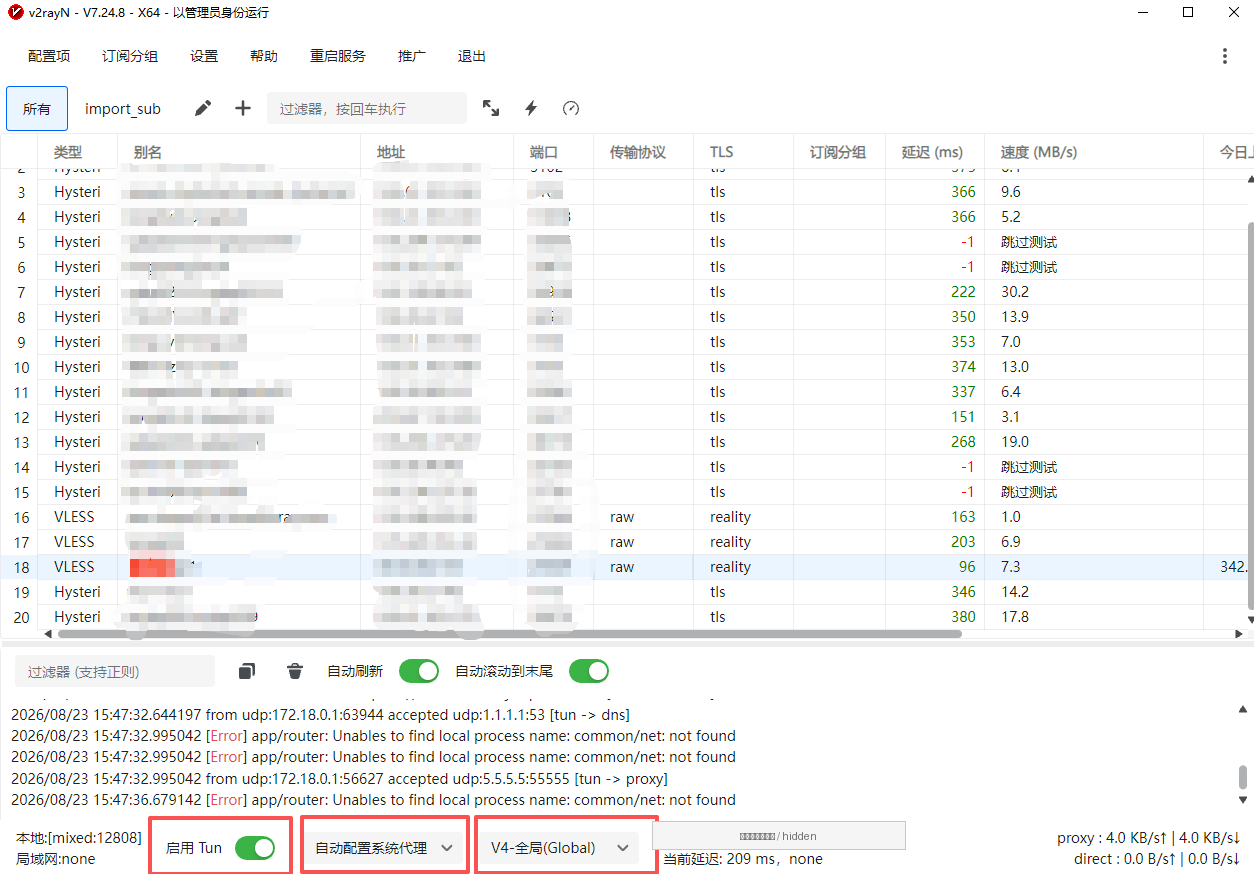
Open v2rayN, pick a currently working node, and turn on "Global + TUN" mode the way you've already verified works. Then open TikTok's website to confirm it loads normally. If TikTok won't load, loads very slowly, or the live page looks wrong, switch to a better node first — don't move on until it's working. Node settings depend on your own v2rayN configuration; this guide doesn't provide, and doesn't need, any unverified or complex parameters.
Step 3: Launch the TikTok stream key tool
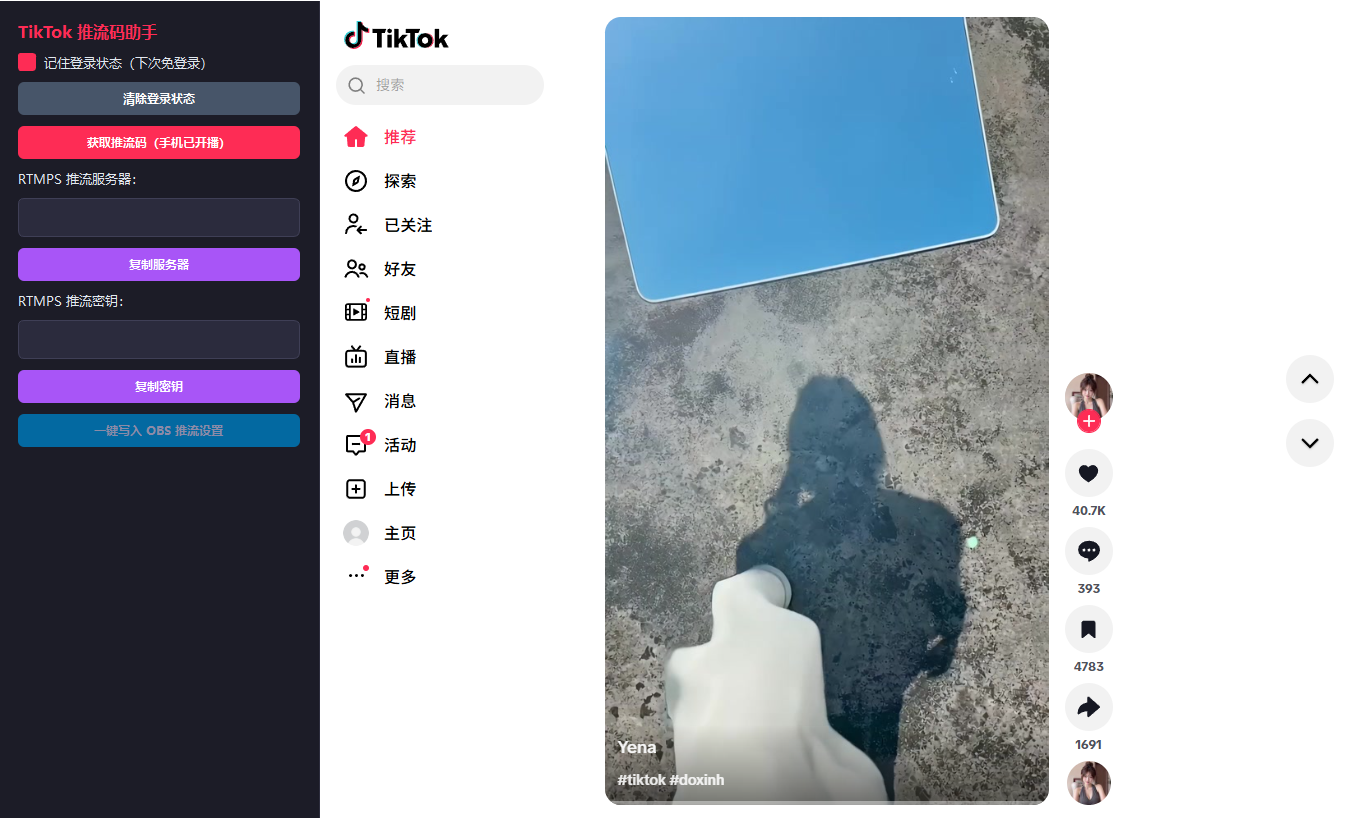
Open GoLive Bridge. The first time you use it, enter an activation code to authorize the app — a device that's already been authorized will verify automatically after that, with nothing to re-enter. Then log in to your TikTok account inside the app — if a login session was already saved, this step completes automatically and you won't need to sign in every time.
Step 4: Go live on your phone first
Open TikTok on your live phone and start a stream normally. You must confirm the stream has actually started on your phone before going back to your PC. If the phone hasn't gone live yet, don't click "Get Stream Key" on your PC — there's no valid data to fetch at that point.
Step 5: Fetch the stream key
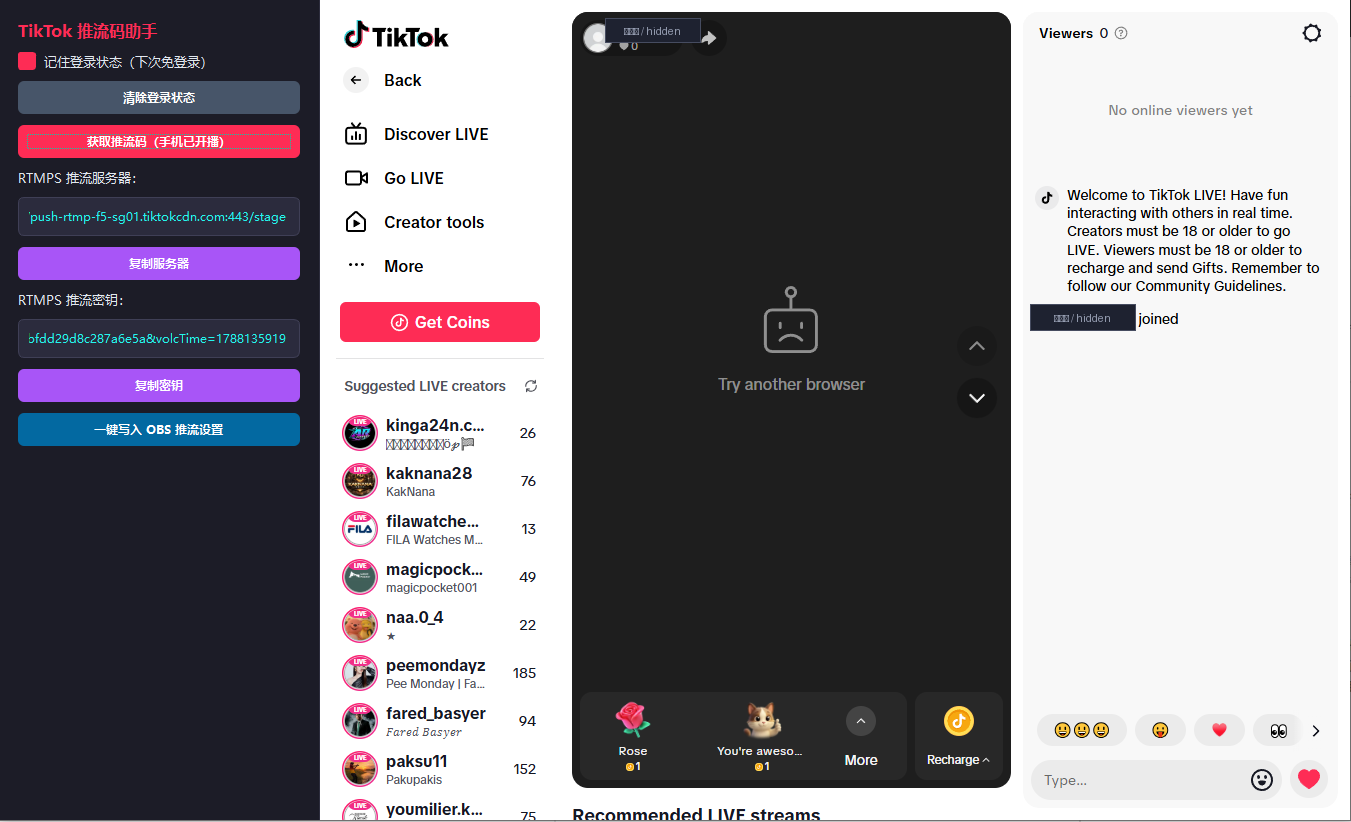
Once your phone is live, switch back to GoLive Bridge on your PC and click "Get Stream Key." The app automatically fetches the RTMPS stream server address and stream key for this session — once successful, both fields appear on screen automatically, with no need to open your browser's developer tools or dig through network requests by hand.
Step 6: Write to OBS in one click
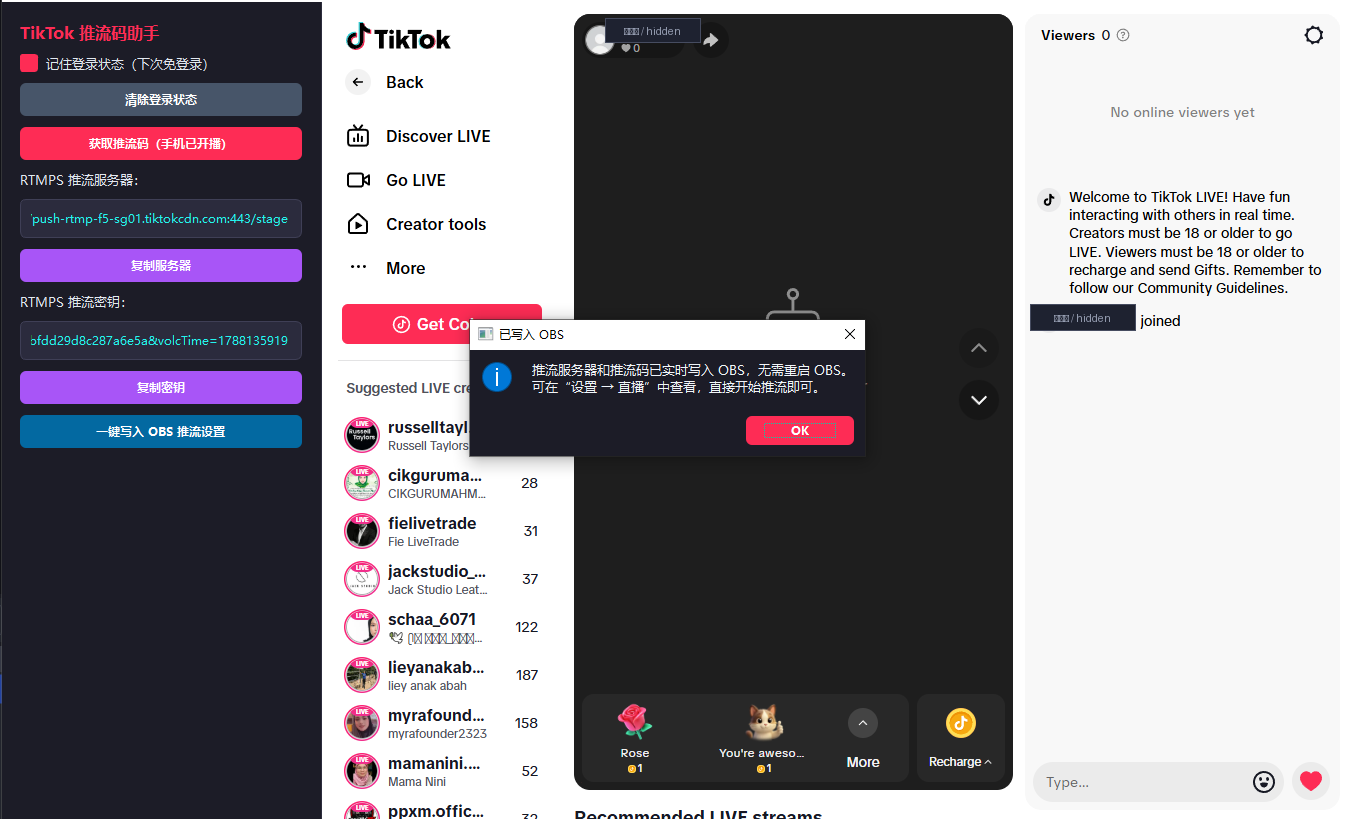
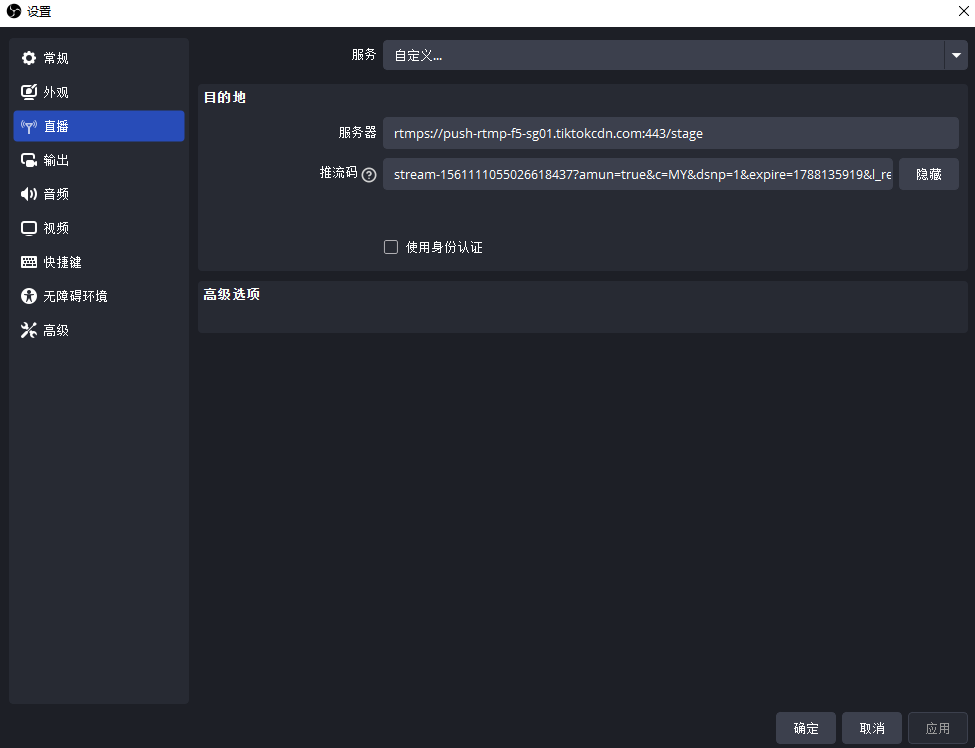
Once fetched, click "Write to OBS in One Click" and GoLive Bridge automatically writes the RTMPS server address and stream key into your local OBS — you never have to copy or paste either value by hand. This is the clearest difference between GoLive Bridge and a fully manual walkthrough. If OBS is running at this point, close it first per the on-screen prompt, then reopen it once the write completes. If auto-write fails, you can use the "Copy Server" and "Copy Key" buttons on screen to paste the values into OBS's stream settings manually as a backup.
Step 7: Disconnect the live phone's network from another device
After the stream key is fetched and written to OBS, the live phone needs to be passively disconnected from the network. Specifically:
- You must disconnect the live phone's network from another device, a router's admin panel, or a hotspot's admin panel.
- Do not turn off Wi-Fi on the live phone itself.
- Do not turn off mobile data on the live phone itself.
- Do not exit the TikTok live page.
- Do not background the TikTok app.
- Do not tap "End Live."
- Do not close the TikTok app directly.
- Only move on to OBS once you've confirmed the live phone has been passively disconnected.
Step 8: Start streaming in OBS
Once you've confirmed the live phone is disconnected:
- Open OBS (reopen it here if Step 6 had you close it).
- Check that the picture, audio, and scene all look right.
- Click "Start Streaming."
- Watch the OBS status bar to confirm it connects successfully.
- Once the TikTok live picture looks normal, you're done.
FAQ
Clicking "Get Stream Key" produces nothing
Check, in order: has the phone actually started streaming yet; does the TikTok account logged into GoLive Bridge match the one live on your phone; can TikTok's website load normally on your PC; is v2rayN's "Global" mode and TUN turned on; and is your current node too slow or unavailable in your region.
TikTok's website won't load on my PC
First check whether v2rayN is running and TUN is enabled, then check whether your current node is working — switch to a better node if needed and try again.
Fetching the stream key is very slow
This is usually related to node latency, network stability, or how fast TikTok's page loads. Try switching to a better v2rayN node first, then fetch again.
Fetched successfully but writing to OBS failed
Check whether OBS is still running (close it first per the on-screen prompt, then write again) and whether OBS Studio is installed correctly. If auto-write keeps failing, use the "Copy Server" and "Copy Key" buttons to paste the values into OBS manually as a backup.
No picture after clicking Start Streaming in OBS
Check whether a valid video source has been added to the OBS scene, whether OBS shows a Connected status, and whether the live phone has been disconnected from the network from another device as required — with the network disconnected first and OBS started second, not the other way around.
It says the stream key has expired
A stream key is tied to that specific live session — an old key can't be reused once you start a new stream. Start a fresh live stream on your phone, then fetch the stream key again.
The mobile live stream ended on its own partway through
The most common cause is doing one of the following on the live phone itself: turning off Wi-Fi or mobile data, exiting TikTok, backgrounding TikTok, or tapping "End Live". The phone must only ever be disconnected from another device or from a router/hotspot's admin panel — see the red warning in Step 7 below.
Why GoLive Bridge
Auto-fetch the stream key
Automatically fetches the RTMPS stream server and stream key for this session — no developer tools, no manually inspecting network requests.
One-click write to OBS
Once fetched, write both values into local OBS with one click — no more copy-pasting two parameters and the typos that come with it.
Saved login session
Supports saving your TikTok login, so you don't have to sign in again every time you go live.
Fewer steps
Fewer overall steps than hunting for parameters and pasting them by hand, which means a lower chance of mistakes.
Ready to stream right after
Once fetched and written to OBS, the disconnect step is all that's left before you're streaming in OBS.
Built for Windows
Purpose-built for Windows 10 / 11 64-bit, designed to work with mainstream OBS Studio releases.
Safety & Privacy
- Only use your own TikTok account, or one you have explicit authorization to use.
- Your stream key is the credential for that live session — never send it to anyone else.
- Never upload a screenshot that shows a full, unredacted stream key to the internet or a group chat.
- Every screenshot in this guide has its activation codes, cookies, proxy credentials, IP addresses, node addresses, stream servers, and stream keys redacted.
- This site never includes any real user data on its pages.