A TikTok mobile live stream normally only runs on your phone, with footage coming from the phone camera and TikTok's built-in stickers/filters. If you want to produce a more polished stream in OBS Studio on your PC (overlays, multiple camera angles, virtual backgrounds, and so on), you need to bring the stream parameters from your mobile live session into OBS. That's exactly what GoLive Bridge automates.
What You'll Need
- A PC running Windows 10 / 11 (64-bit) with OBS Studio installed.
- A TikTok account with official mobile live access already granted (access is controlled by TikTok based on account and regional rules).
- GoLive Bridge downloaded, installed, and activated with a valid code.
- A working network on both your phone and PC, with access to TikTok and its live-streaming services.
Step by Step
Step 1: Install and activate GoLive Bridge
Download and install GoLive Bridge, then enter your activation code on first launch — see the installation steps on the download page.
Step 2: Log in to TikTok
Sign in to your TikTok account inside GoLive Bridge. Your login is saved locally, so you won't need to sign in again for future streams.
Step 3: Start a TikTok live stream on your phone
Start a live stream normally from the TikTok mobile app — the same as you always do, with no extra setup needed.
Step 4: Fetch the live configuration in GoLive Bridge
Once you're live, switch back to GoLive Bridge and click to fetch the live configuration; it reads the stream server address and key for this session.
Step 5: Write to OBS with one click and start streaming
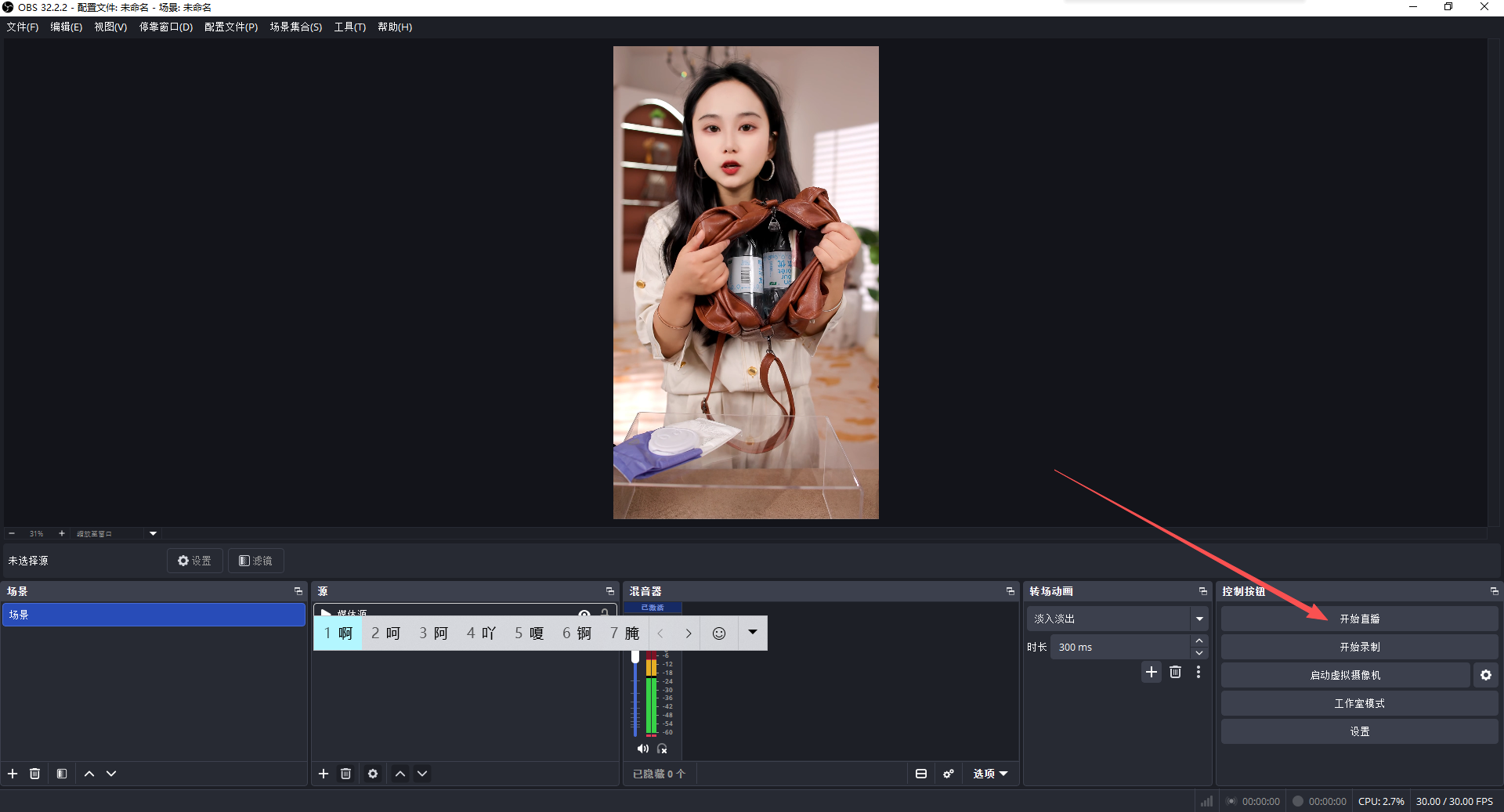
After confirming the retrieved configuration, click the one-click write button — GoLive Bridge writes the parameters into your local OBS Studio stream settings. Switch to OBS, double-check your scenes and sources, and click "Start Streaming" to send your PC output out through this TikTok live session.
Common Issues
- Network issue: Make sure your PC can reach TikTok and its live-streaming services. For the exact network setup and step order, see the Full Guide: How to Get a TikTok Stream Key.
- TikTok account isn't approved for mobile live: Mobile live access is granted by TikTok based on account level, region, and compliance status. GoLive Bridge cannot grant or bypass this permission — check your live eligibility in the TikTok app.
- Login session expired: Your TikTok login session can expire due to TikTok's own policies. Simply log in again to restore automatic retrieval.
- OBS version or path mismatch: Make sure you're using standard OBS Studio, and that the correct OBS profile path is selected in GoLive Bridge.
- Activation code has expired: Once a Monthly / Quarterly / Yearly license expires, automatic retrieval and OBS write-in are disabled until you renew.